Instructions for the SmartWay system
Platform for 2025/2026 course selection campaign is available at: https://smartway.hse.ru/
Please use a PC to log into the system.
There are two stages during the 2025/2026 course selection campaign:
1st stage - first course selection round. You may submit applications for courses starting in the 1-2 modules with and without additional selection.
2nd stage - second course selection round. You may submit applications for courses with available places + applications for time slots for all selected courses.
 Please note! Yearly recommended amount for each student is 60 credits (see "Total").
Illustrated instruction
Short instructions
Steps by selection rounds
1. How to log into your account
Use link https://courseselect.hse.ru/ and your corporate e-mail information
2. Before selecting courses
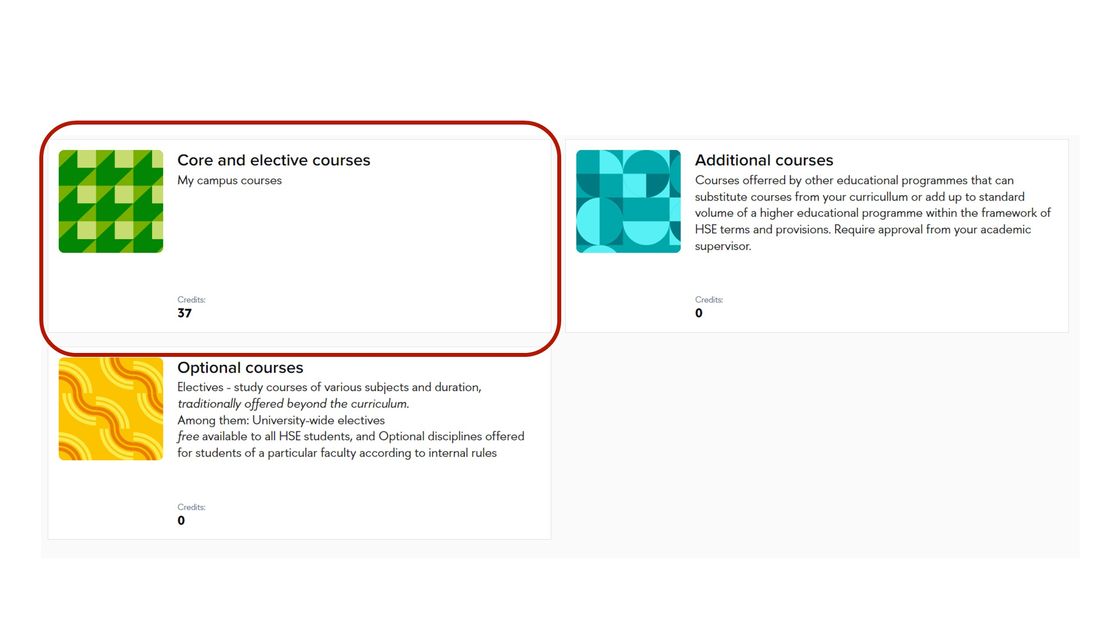
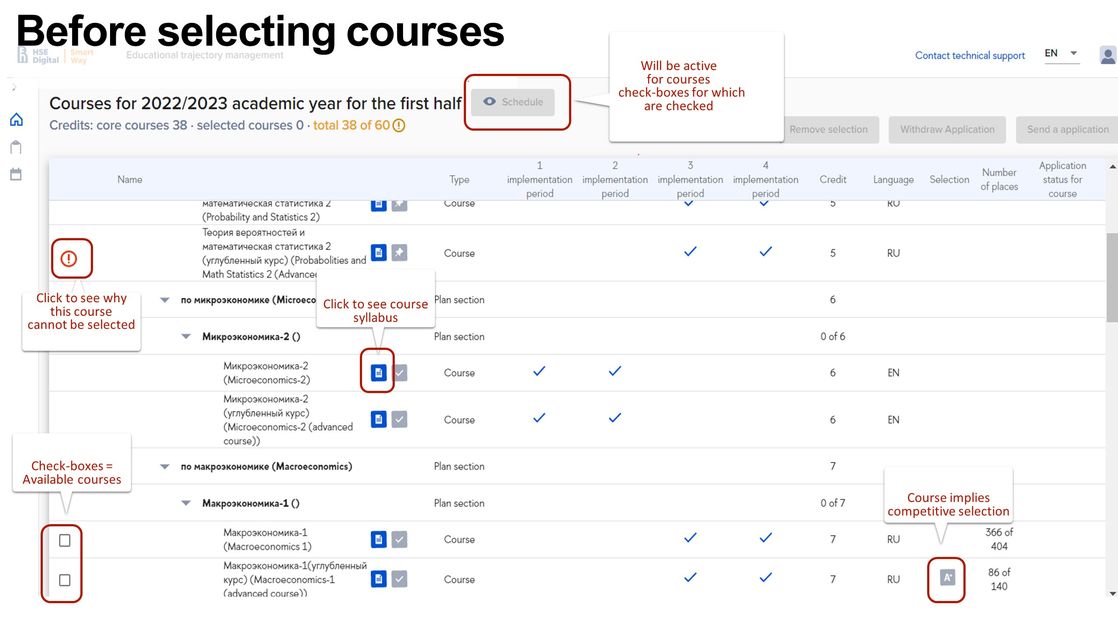
Open "Core and Elective Courses" section and look through the courses for the current academic year. There is a check-box on the left of available courses, starting in the next semester. Using the checkbox you can also the the schedule for all courses.
Available are courses starting in the first (for summer/fall campaign) or in the second (for winter campaign) semester, fitting into "Elective courses" or "Other curricula courses" (General courses, MagoLego, Elective courses provided by your faculty) category that have vacant places.
Marks in "Implementation period" columns show in which modules a course takes place.
To look through course syllabus click
Courses marked by imply competitive selection; selection is based on student's rating if not stated otherwise in the course abstract.
To see the schedule check a check-box to the left of a course (or courses) and click "Schedule" on top of the page.
Before selecting courses please make sure that:
! There are no schedule overlaps between courses you intend to select and assigned courses.
! Course site and format (online/offline; building, campus etc.; information available in the schedule) suit you.
To find out whether you need to select any courses from "Core and Elective Courses" section please contact your programme office.
3. Course selection (first and second selection rounds)
To select elective courses from your programme curriculum, as well as other curricula courses (MagoLego, general courses, elective courses provided by your faculty):
- Open "Core and elective courses" section, to select General, MagoLego courses, Courses provided by your faculty go to corresponding sections;
- Check a check-box on the left of the course;
- Click "Submit application".
To select Optional Courses provided by the faculty and Open Optional Courses (fall and winter campaigns) - go to "Optional Courses" section.
To select English Language Courses - go to "English" section.
To select courses of other educational programmes (if you have received an approval from your academic supervisor) - go to "Additional Courses" section.
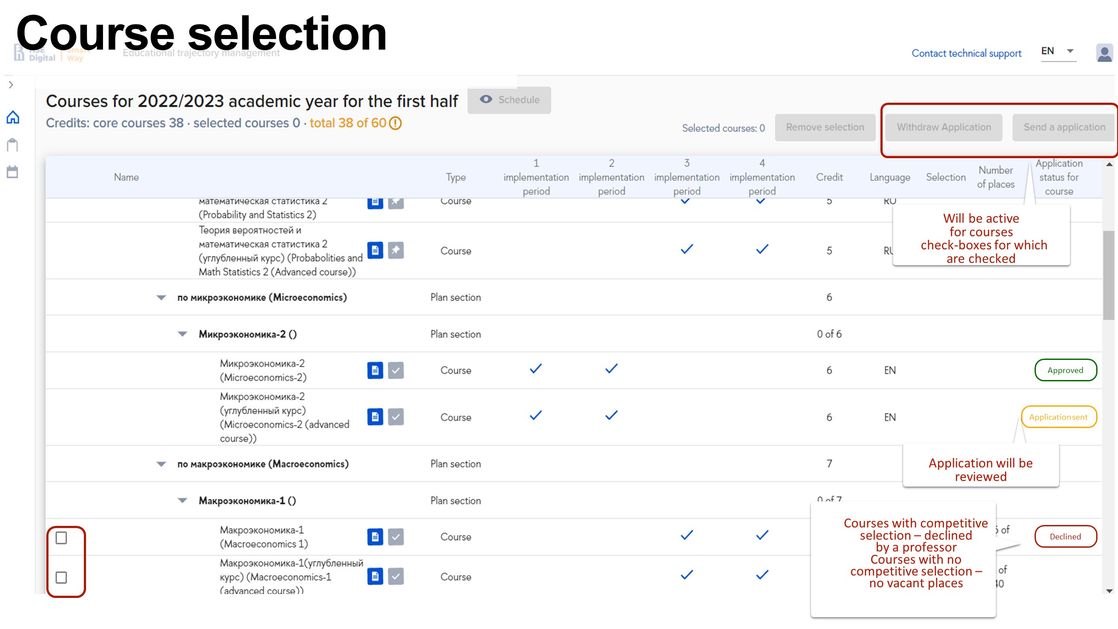
If a courses does not imply competitive selection - your application will be processed by the system in 30 minutes, its status will change to either "Accepted" or "Declined".
If a course implies competitive selection (has a mark in "Selection" column) - an application will receive "Application sent" status and will be reviewed by a professor by the beginning of the second selection round.
During the second selection round there may be additional vacant places for some courses.
4. Time slots (schedule) selection
Cohort – a group with which you are going to attend lectures, as well as time slots for lectures.
Group – a group with which you are going to attend seminars, as well as time slots for seminars.
Subgroup – a group with which you are going to attend practical classes (language and laboratory classes), as well as time slots for those classes.
You may select time slots (schedule) for courses with application status "Approved" (highlighted in green). During the 2nd selection round you may select courses with time slots only (for MagoLego, General courses, Elective courses provided by your faculty - after selecting a course go back to "Core and elective courses" section to select time slots).
To select time slots (schedule) for a course (or several courses at once):
- Open "Core and elective courses" section;
- Check a check-box on the left of the course/courses;
- Click "Submit an application";
- At the top of a new window you will see the name of the course you are selecting time slots for. If you selected several courses, to go to the next course use arrows in the top right corner;
- Select a check-box on the left of the time slot (cohort/group/subgroup);
- Click "Select";
- When all time slots are selected click "Submit an application".
Please note! To select time slots for seminars click "Group" (at the top of the page), to select time slots for lectures click "Cohort".
Please note! If there is no schedule/no suitable time slots for one of the selected courses, you may go back to pt.2 and uncheck the check-box for this course.
Schedule application may receive "Approved" or "Declined" (no vacant places) status.
5. Course and time slot (schedule) application withdrawal
Application with "Approved" and "Application sent" statuses may be withdrawn during the 1st and 2nd selection round. You are withdrawing the whole application - for a course and time slots for it.
To withdraw an application:
- Open "Core and elective courses" section;
- Check a check-box on the left of the course, for which time slots are selected;
- Click "Withdraw application".
In-Depth Instructions
General Information
On the home page sections available during this selection campaign are shown (4 sections maximum):
- Core and Elective Courses (to select core, elective, MagoLego courses)
- Additional courses (to customize learning process) - available during the second selection round only
- Optional courses (to choose optional courses provided by your faculty or open optional courses)
- English language courses (to choose English language courses)

To select courses click on one of the sections. Select courses successively in each section.
To go back to the home page click "Course selection" in the sliding leftside menu.

Icon meanings:
| Icon | Meaning |
 |
Link to syllabus |
 |
Elective course (select one or several courses from the section) |
 |
Core course (cannot be removed from your curiculum) |
 |
Course that implies competetive selection (based on student's rating if not stated otherwise) |
 |
Track (course available for a particular track) |
| with MOOC | Course includes MOOC (online course); may include lecturs. seminars and other types of activities; exams may be offline). See course syllabus for more information (number of online and contact hours) |
| inter-campus/for all | Inter-campus course (for students from several campuses); class format in each campus may differ |
Please note: filters available for all sections (MagoLego, General Courses) are implementation period, vacant places, language, study format etc.
How to log into your account
To log into your account use HSE corporate e-mail.
! If you forgot your password please contact your programme office.
To log in click “Sign in with my HSE Services Account".

Choose account type (if your e-mail is @edu.hse.ru, choose “Students”). 
Type in your e-mail and password and click “Sign in”. You will see SmartWay home page.
First, select courses in “Core and Elective Courses” section, is it is available during current selection campaign.
“Core and Elective Courses” section
1st selection round
“Core and Elective Courses” section contains structured list of all elements of your curriculum for the current academic year (during the summer selection campaign - for the future academic year).
In this section you will see all courses for in the current study year.
Some courses in “Core and Elective Courses” section are assigned automatically. These are core courses. These courses are marked by the icon:

You cannot change these courses in SmartWay. During the 2nd selection round you will be able to select time slots (subject units) for these courses, if they are available.
A course will be available if:
- it starts in the next semester (summer/fall campaign - 1-2 modules; winter campaign - 3-4 modules);
- there are places available;
- it is an “Optional course” or "Other curricula course".
You may not be able to select a checkbox in front of a course due to one of the following reasons:
- it is a core course;
- there are no places available, marked by

How to select courses in “Core and Elective Courses” section
To select courses:
1. Select the checkbox in front of an available course (select one or more courses);
2. Click “Submit an application for a course”.
Courses with no competitive selection :
In a new window the system will ask to confirm your applications and information on selected courses.
Check all the data, if everything is correct, click “Yes” in two successive notifications
First notification:
Second notification:
After all confirmations you will recieve a notification that all aplications have been sent:
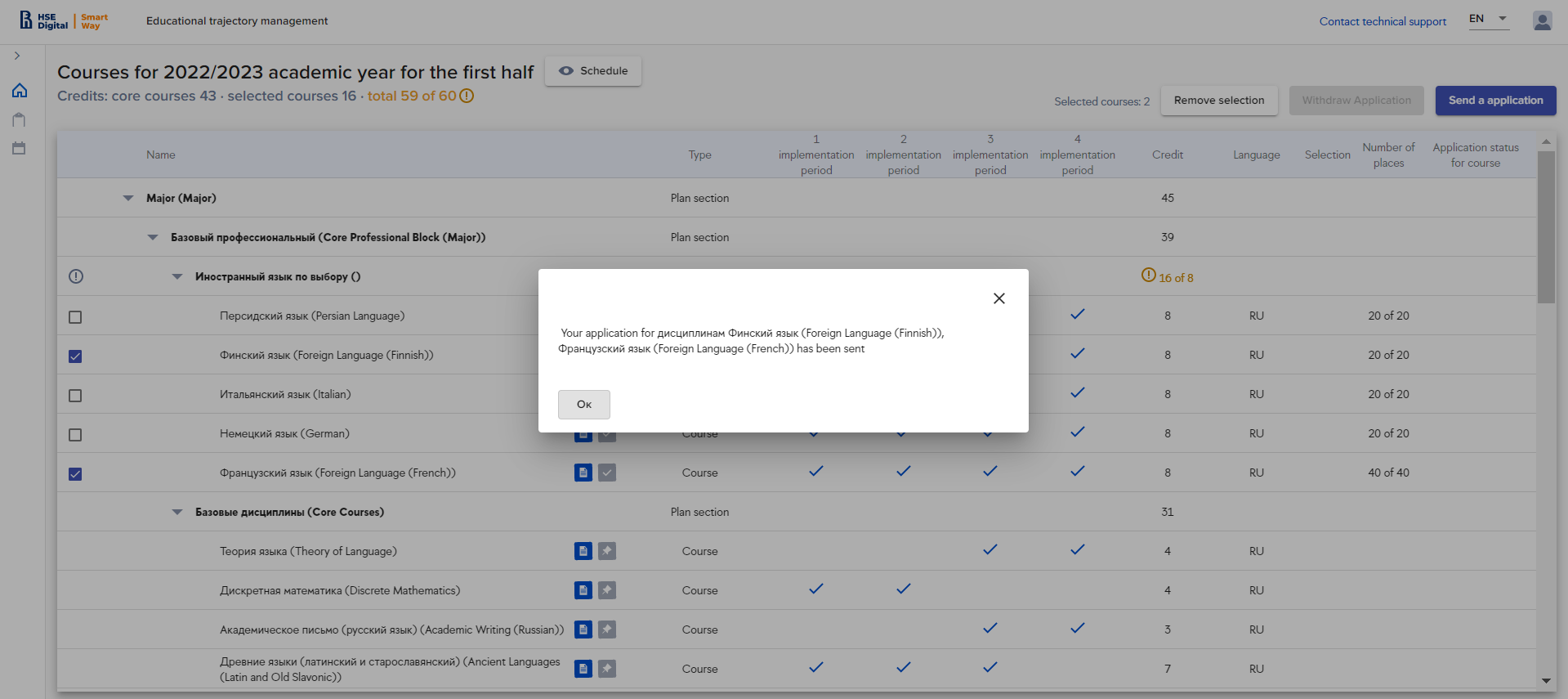
If a course was selected by mistake, click "No" in both notifications and repeat the selection process.
If a course does not imply competitive selection, the system will automatically process your application:
- if there are places available, application status will change to “Approved”,
- if while the system was processing an application all the places were taken, the status will change to "Declined, no available places". If more places are added, you will recieve an e-mail and will be able to resubmit your application.
Please note! For courses with no additional selection application status (Approved/Declined, no places available) form a few minutes up to an hour during periods of peak demand (during this period the application will have “Application in processing” status) ! Places are distributed according to the time the application was submitted.
Apllication with "Approved" status in the list of courses:

Courses with competitive selection:
If you submit application for a course that in “Selection” column has tag, application status will not change to “Approved” automatically. These applications will be processed by a manager after 1st selection round ends.
After an application is sent but before it is processed by a programme or department manager and places are available, it will receive “Application in progress” status.
If while the system was processing an application all the places had been taken, the status will change to "Declined, no available places". If more places are added, you will recieve an e-mail notification and will be able to resubmit your application.
MagoLego/ Elective courses provided by your faculty:
To select MagoLego or elective courses provided by your faculty go to "Core and elective courses" section.
In "Core and elective courses section":
- Find a line with MagoLego courses or elective courses provided by your faculty;
- Click "Select courses".
3. in a new window:
- type course title or its part in the search bar if needed, click Enter;
- if you want to see only the courses available for your degree programme, use "Courses for my programme" filter;
- select the checkbox in front of a course (one or several);
- click "Submit an application";
- confirm your application.
The system may process an application for form a few minutes up to an hour during periods of peak demand. Application will have "Application in processing" status. You will also see a warning that you need to wait for the final application status: Approved or Declined.
In "Core and elective courses" section in Magolego/Elective courses provided by your faculty segment (sample segment names, may differ from your actual curriculum) you will see courses for which you have submitted applications:
- with "Approved" status if a course doesn't imply competetive selection and there are places available;
- with "Application in progress" status if a course does imply competetive selection and there are places available.

You won't be able to see the apllications with "Declined" or "Declined, no places available" statuses - to see those find a line with "Course of other plans" course type and click "Select courses" or go to "My applications" in the leftside sliding menu.
Application withdrawal
If you submitted and application by mistake or want to change your selection, you may withdraw it.
Withdrawal is available for application with statuses:
- Approved;
- Application in processing
To withdraw an application:
1. select the ckeckbox in front of a course application for which you want to withdraw (provided that it has a suitable status). If you check the checkbox in front of a course that has no status or has an unsuitable status, you won't b able to withdraw the application);
2. click "Withdraw application";
3. confirm application withdrawal by clicking "Yes" in two confirmation notifications and "Ok" in the last one;
4. if you don't want to withdraw an application (clicked "Withdraw application" by mistake), in a confirmation notification click "No".
First notification:
Second notification:
After application withdrawal, a line with a course title will:
- have no color marking;
- have no information in "Application status" column.
2nd selection round
During the 2nd selection round selection conditions (rating based selection) do not imply.
Plese note! During the 2nd selection round you may submit applications for courses and time slots at the same tiime or applications for timeslots for courses you have selected during the 1st selection round. You cannot submit an application for a course without selecting time slots.
You may submit applications for time slots:
- for core courses;
- for courses with "Approved" application status;
- for courses you have not submitted an application before (application for a course and time slots);
You will be able to submit an application if:
- course schedule has been made up;
- there are places available;
- there is a suitable time slot;
- there are places available in a suitable time slot.
If all of the conditions are not met, you will not be able to submit an application:
- you will see beside course title;
- there will be no checkbox.
To select time slots for the courses:
1. select the checkbox in front of a course (available for all suitable courses with suitable time slots if there are places available). Checkboxes may be selected for all the courses or for each course separately;
2. click "Submit application for course/time slot";
3. Select time slots successively for each course:
- select the checkbox in front of a time slot;
- click "Select"
- move to the next time slot (Lectures, Seminars, Practical Classes, group, subgroup) or the next course and repeat all the steps until time slots for all the courses are selected;
- to finalize your selection click "Next step".
Selected types of time slots will be marked by "1" in a green circle. If you have not selected a type of time slot it will be marked by "0" in a red circle.
If you have not selected all the types of time slots available for the course, you will recieve a warning when going to the next course. You may select either "Select time slots" or "Delete an application"
If you click on "Select time slots" you will go back to time slots selection
If you click "Delete an application" your application will be deleted and you will go to the next course (if there are any courses left).
If you select overlaping time slots, before you go to the next time slot or course, the system will warn you.
Ater you click "Submit an application" you will see the following notifications
What you may see after submitting all the applications:
- if there are vacant places for a time slot and you have selected this time slot, your application will recieve "Shedule application approved" status and in "Schedule application status" column you will see selected time slots in green;
- if while you application was being processed by the system all vacant places had been taken, in the list of courses in "Application status for course" column and in "Schedule application status" column you will see "Declined" status. You may submit application for other time slots with vacant places;
- if you have not selected time slots for one or several courses, your applications will be deleted.
Submitting application for the courses of your minor
Second and third year bachelors and specialists may submit applications for courses and time slots for previously selected minor.
There are 3 types of minors:
- Minors with core courses only
- Minors with elective courses
- Minors with tracks
For minors with core courses only during the first selection round you may see available time slots. During the second selection round you may submit applications for time slots.
For other types of minors you should select one of the available courses. If you select more than one course the system will warn you. If you click "Ok" your selection will be cleared.
You may submit application for an elective course of your minor either during the first selection round or during the second selection round along with an application for time slots.
Applications are submitted the same way as in the "Core and elective courses" section.
Application withdrawal
If you submitted and application by mistake or want to change your selection, you may withdraw it.
Withdraral is available for one or several courses, for one or several time slots for one course. You withdraw applications for a course and time slots simultaneously. You cannot withdraw an apllication for a time slot only.
Please note! Before withdrawing your apllication make sure that you will be able to change your selection: there are available places for other courses and suitable time slots. You withdrawing application for a course and time slots at the same time.
Withdrawal is available for application with statuses:
- Application for a time slot is approved;
- Application for a time slot is in processing;
- Apllication for a course is approved (no time slots selected).
! If there is no check box in front of a course, go to "My applications" and withdraw an application there.
To withdraw an application:
- select the ckeckbox in front of a course (one or several) application for which you want to withdraw (provided that it has a suitable status). If you select the checkbox in front of a course that has no status or has an unsuitable status, you won't b able to withdraw the application);
- click "Withdraw application";
- confirm application withdrawal by clicking "Yes" in two notifications;
- if you don't want to withdraw an application (clicked "Withdraw application" by mistake), in a confirmation notification click "No" or "Cancel".
First notification:
Second notification:
After application withdrawal, courses application for which were withdrawn will:
- have no information in "Schedule application status" column;
- have no information in "Application status for course" column.
Peculiarities of selecting courses from other curriculum during the 2nd selection round (MagoLego, Elective courses provided by your faculty)
If you have applications with "Approved" statuses from the 1st selection round, to submit applications for time slots see the instructions above.
If you do not have course applications (did not submit applications during the 1st selection round or withdrew all the applications), to submit an applications:
1. go to "Core and elective courses" section;
2. go to the section that contains courses of other curricula (see "MagoLego/ Elective courses provided by your faculty");
3. select courses if they are available;
4. submit application (see "MagoLego/ Elective courses provided by your faculty");
5. go back to "Core and elective courses" section;
6. when an application recieves an "Approved" status, select time slots (see "2nd selection round");

Have you spotted a typo?
Highlight it, click Ctrl+Enter and send us a message. Thank you for your help!
To be used only for spelling or punctuation mistakes.